
2FA (Two-Factor Authentication)
Two-Factor Authentication (2FA) is required to create API tokens and process withdrawals through the dashboard. This layer protects your account and your money. You can use any TOTP authenticator app (Time-based One-Time Password), such as Google Authenticator, Microsoft Authenticator, 1Password, Authy or any other compatible TOTP app.
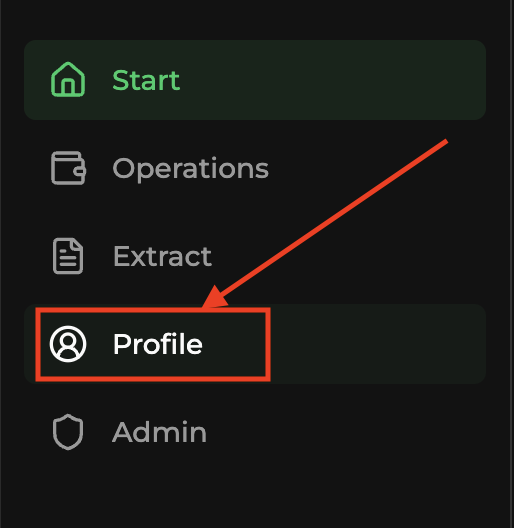
Open Profile in the side menu
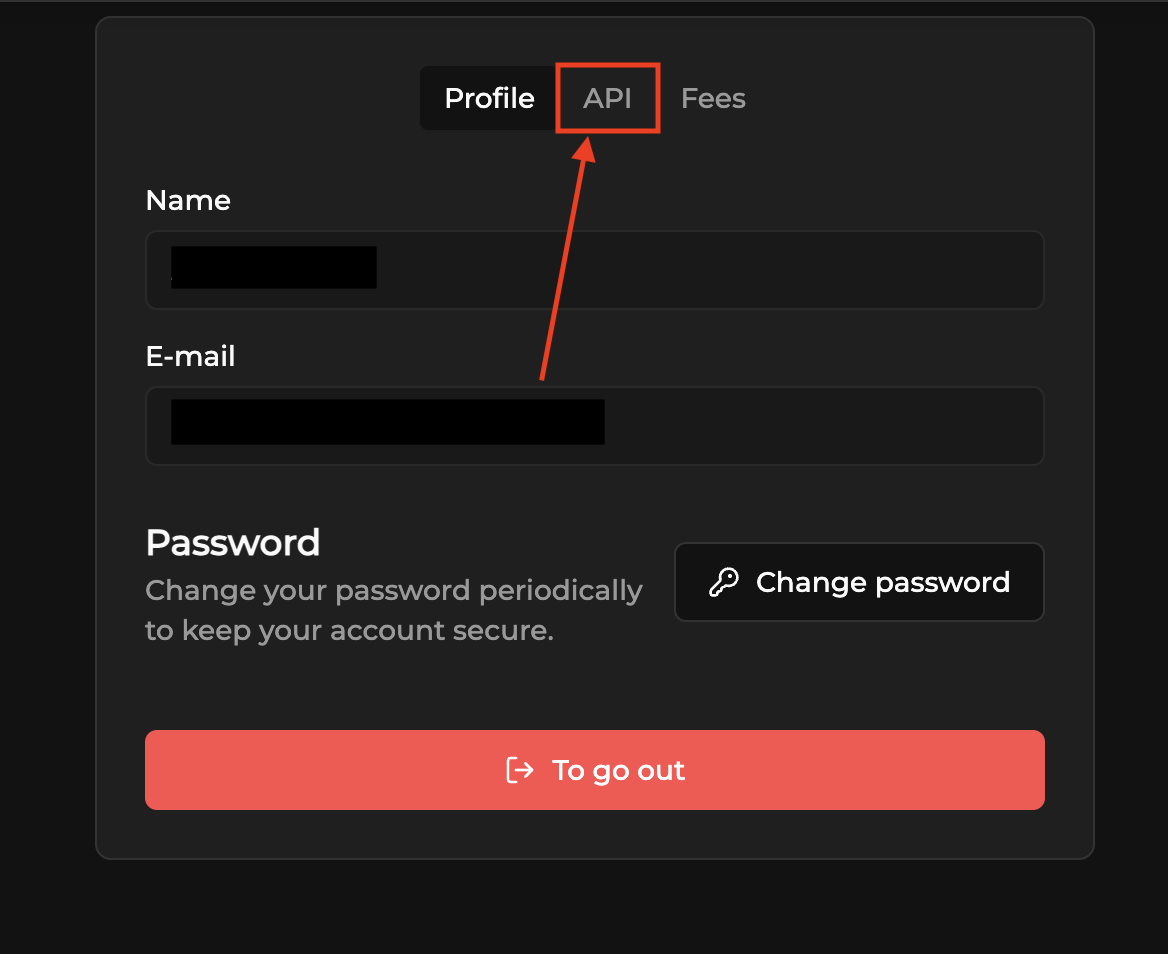
Click the API tab
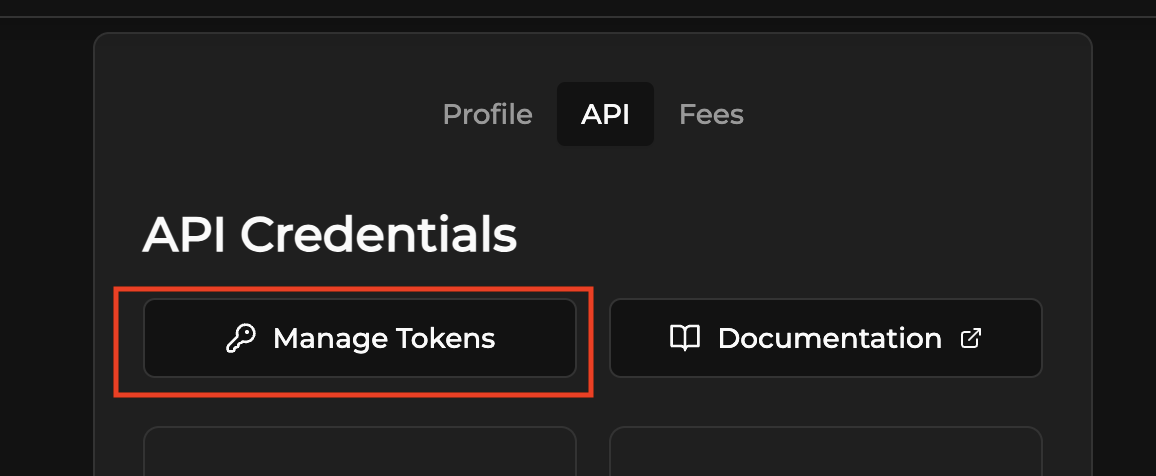
Click Manage tokens
Click Authenticate to start the 2FA setup

In the 2FA modal
- Scan the QR Code with your authenticator app, or copy the secret code and add it manually.
- Enter the 6-digit code generated by the app.
- Click Confirm and activate.
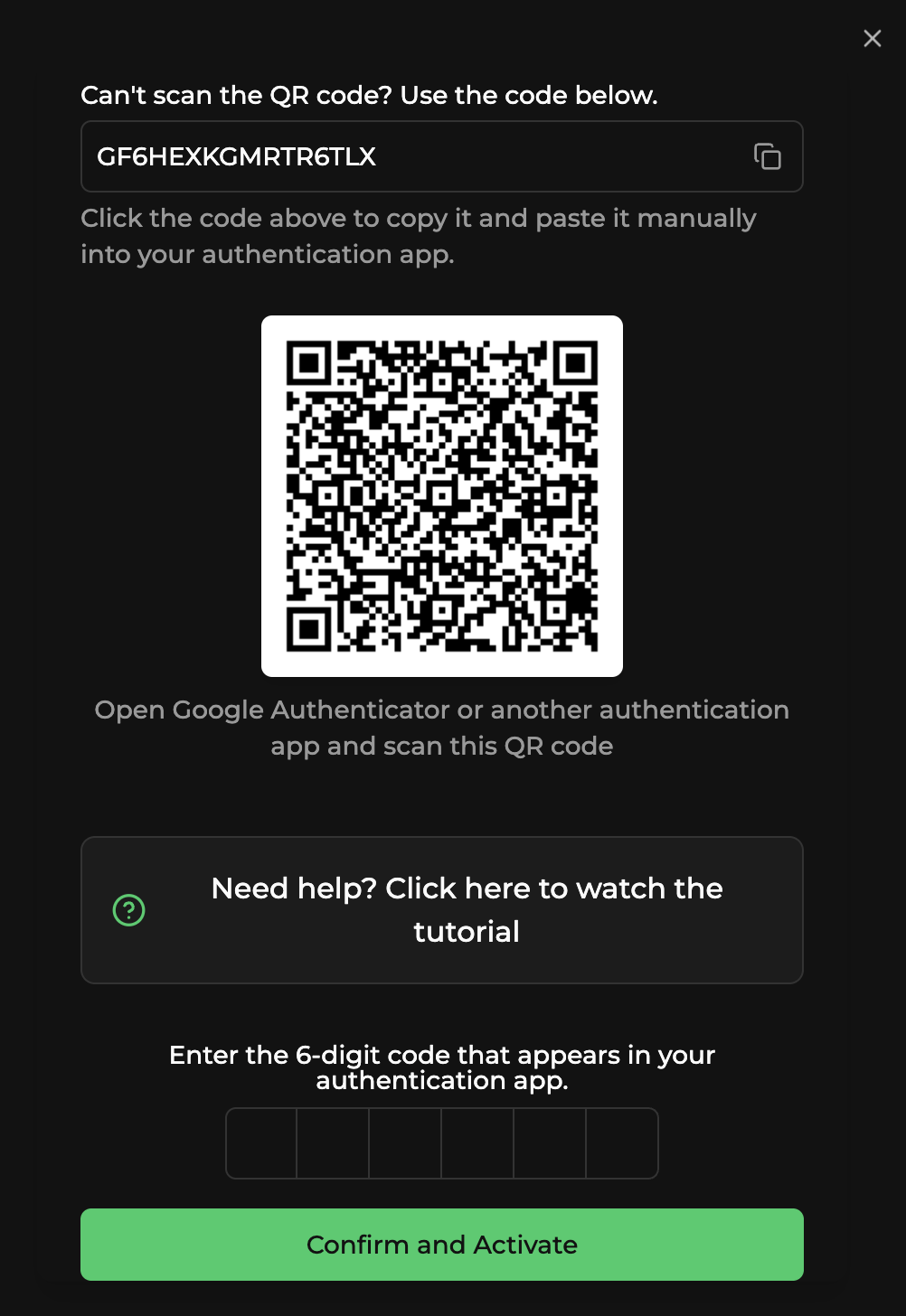
Done. Go back to Manage tokens and create an API token with the required permissions.
If you can't scan the QR (manual entry)
Google Authenticator (or any TOTP app) generates time-based 6-digit codes. To add your PayZu account manually:
- Install a TOTP app from your phone's store (Google Play or App Store).
- Open the app and tap the + button to add a new account.
- Choose Enter a setup key or Enter code manually.
- Copy the secret code shown in the PayZu 2FA modal and paste it in
the app exactly as it is, for example:
<YOUR-SECRET-CODE> - Give the account a name (for example, PayZu).
- The app will generate a 6-digit code that changes every 30 seconds. Use this code to Confirm and activate.
Keep your 2FA setup and recovery information in a safe place. You will need it if you change or lose your phone.
Tutorial videos
Tips
- If the code shows as invalid, check that your phone's time is set to automatic synchronization and try again.
- Keep your 2FA setup safe. If you change devices, you will need to reconfigure 2FA.
Checklist de produção
Lista verificável dos itens que sua integração precisa antes de receber tráfego real. Cobre idempotência, callbacks, dinheiro, segurança, conciliação e observabilidade.
TrueHolder
Trava de segurança que valida a titularidade do documento (CPF/CNPJ) antes de processar a transação. Funciona tanto em cash-in (depósito) quanto em cash-out (saque), bloqueando movimentações fora do titular autorizado.